
Flag a case to find it later
Tap the flag near the top of the case form, or beside the title of a saved case. Pick Research, Case report, M&M, or Teaching, and tap Done. On “All cases,” the Lists filter shows only the cases on a list. Flags are private to you and never go to the ACGME.
By Christopher Cutler, MD, CA-1, anesthesiology
You flag a case to remember it for later. Six months on, the case you wanted for M&M is one tap away instead of a search.
- 1
Tap the flag
The flag sits near the top of the case form and beside the title of a saved case. A menu named Flags opens, and its first line says flags are private to you.
- 2
Pick one list or several
Four lists come with the app: Research, Case report, M&M, and Teaching. Tap every list that fits, then tap Done. One case can sit on several lists.
- 3
Add a short note if you want one
Each flag can carry a short note about why the case matters. Keep the patient out of the note. Capnolog checks the note for identifiers before saving.
- 4
See everything on a list
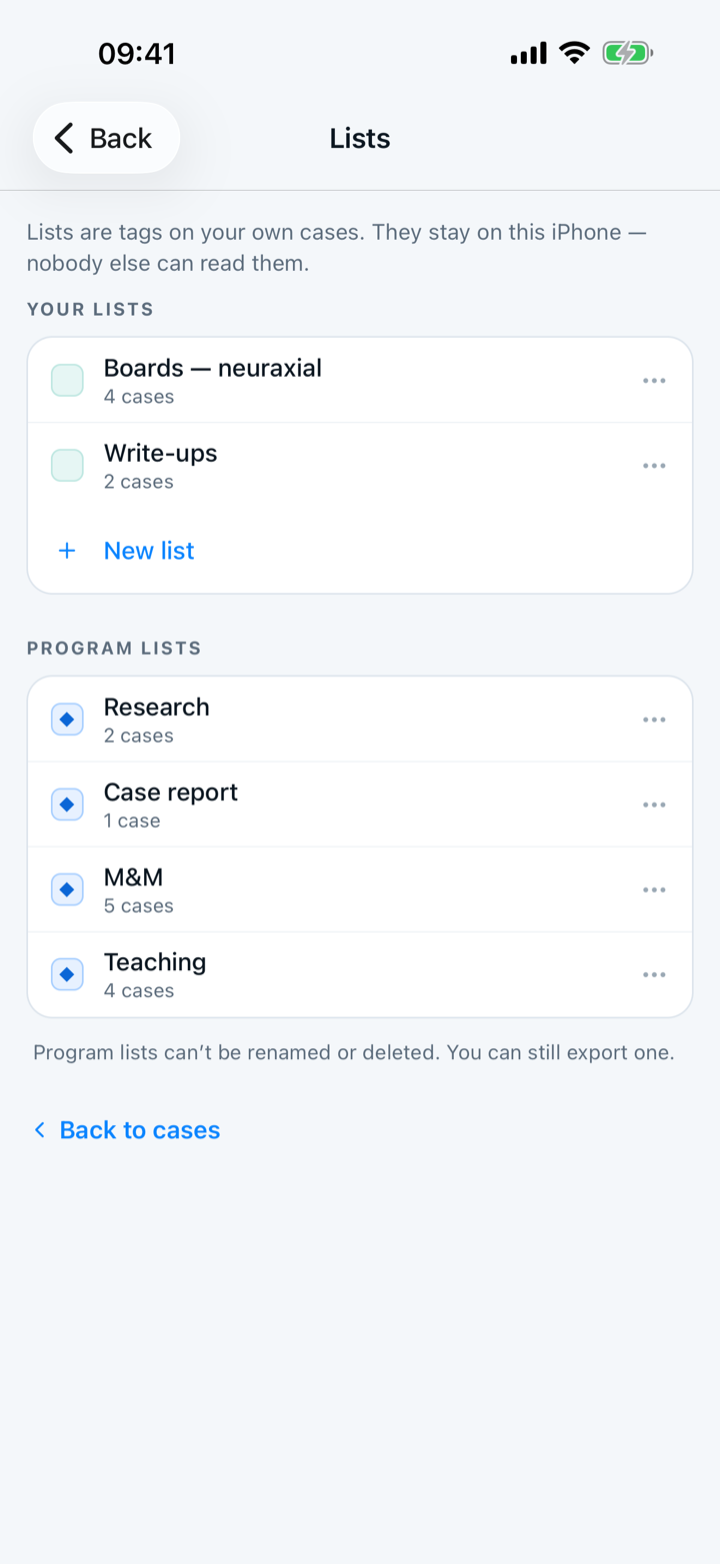
On the Log tab, tap “All cases,” tap the Lists filter, and choose a list. The number beside the name is how many cases the list holds.
- 5
Make a list of your own
In the Flags menu, type a name under “My lists.” Making a new list is part of Capnolog Premium. Flagging a case on any list you already have is free.
- 6
Rename, export, or delete a list
“Manage lists” opens the Lists screen. Your own lists can be renamed, exported as a CSV, or deleted, and deleting a list keeps its cases. The four built-in lists can be exported but not renamed or deleted.

Keep reading
A flag never reaches the ACGME, the case log export, or your totals. A flag is a bookmark for you.
More in day to day
Tap the answers or use a template, and never lose a case.
Set up tomorrow's OR board the night before — then log each case in one tap.
Share a case template or an attending note with your program, and use the ones your co-residents shared.
Hand off an anesthetic plan to a co-resident, or plan the case together with a senior on two phones.