
Lock Capnolog with Face ID
Capnolog locks behind Face ID or your fingerprint from the first day. Open Settings → App & workflow → Appearance & units and find the Security group. “Auto-lock after” sets the wait: Immediately, 1 min, 5 min, 15 min, or Never. Turning the lock off asks you to authenticate first.
By Christopher Cutler, MD, CA-1, anesthesiology
A phone gets handed around a workroom. The lock means an unlocked phone is not an open case log.
- 1
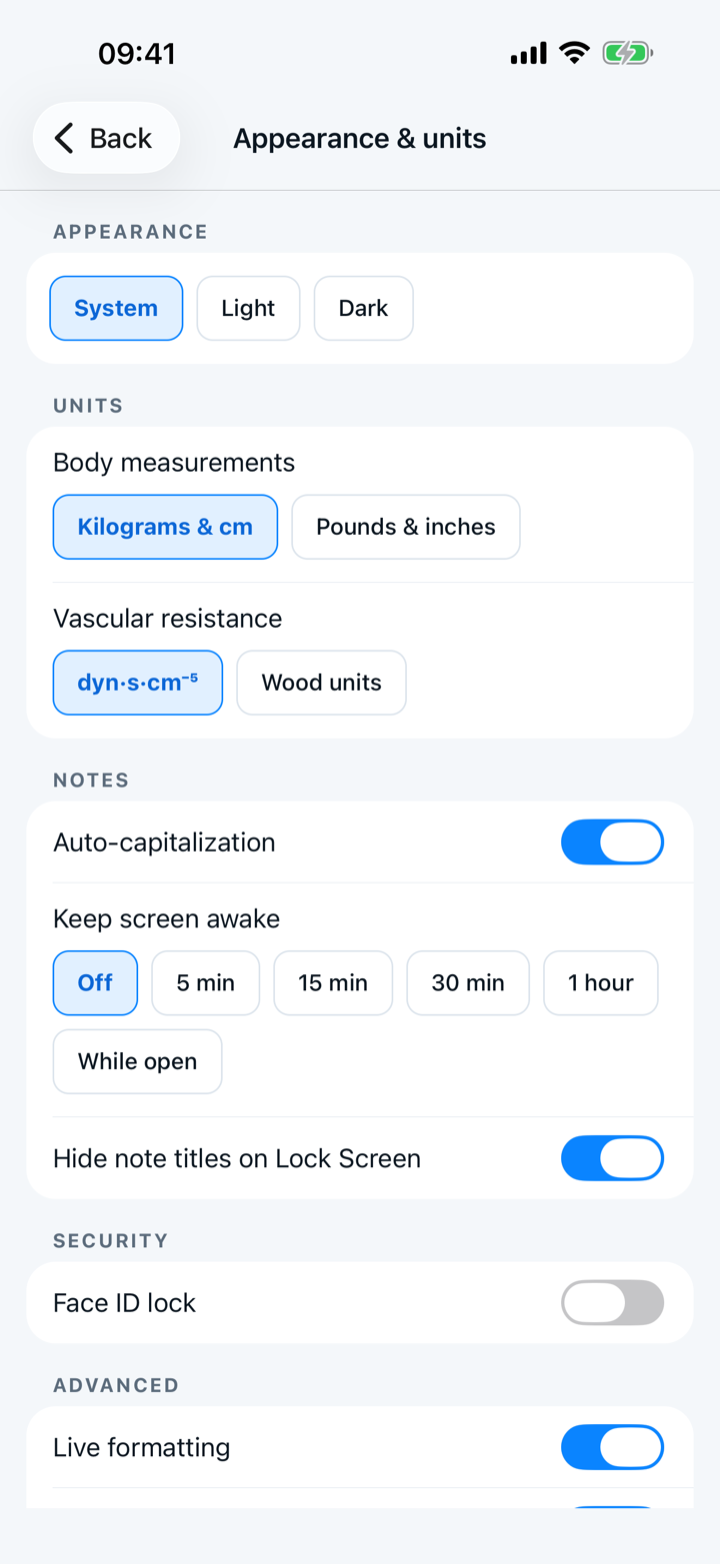
Open Settings → App & workflow → Appearance & units
Scroll to the Security group. The switch is named for your phone: “Face ID lock” on most iPhones, and a fingerprint or face unlock name on Android.
- 2
Choose how long the app waits
“Auto-lock after” offers Immediately, 1 min, 5 min, 15 min, and Never. The app starts at 5 min. Pick Immediately if you share a workroom and leave your phone on the desk.
- 3
Turn the lock off only after proving you are you
Capnolog asks for Face ID, your fingerprint, or your passcode before the lock turns off. Turning the lock on asks for nothing.
- 4
If the switch will not turn on
The lock uses the phone's own screen lock. A phone with no passcode cannot lock Capnolog, and a line under the switch says so. Set a passcode in the phone's settings, then come back.

Keep reading
More in account and safety
Compare codes with a co-resident face to face once, then mark the pair verified.
One free account links your phone, your computer, and the ACGME extension.
The backup is on from the first day, and a new phone offers to bring everything across.
Write to a person, and attach a report that shows what the app did.