
Set your training year, and fix a year warning
Open Settings → Personal & training and set “Training year.” Residency runs July 1 to June 30, so the year is the only answer needed. When the ACGME's records disagree, the Log tab shows a warning. “Fix my year” means Capnolog's year is probably wrong. “See the cases” means specific ACGME entries are filed under the wrong year.
By Christopher Cutler, MD, CA-1, anesthesiology
Every case is stamped with the year of training you were in on that date. A wrong year puts a whole run of cases in the wrong column.
- 1
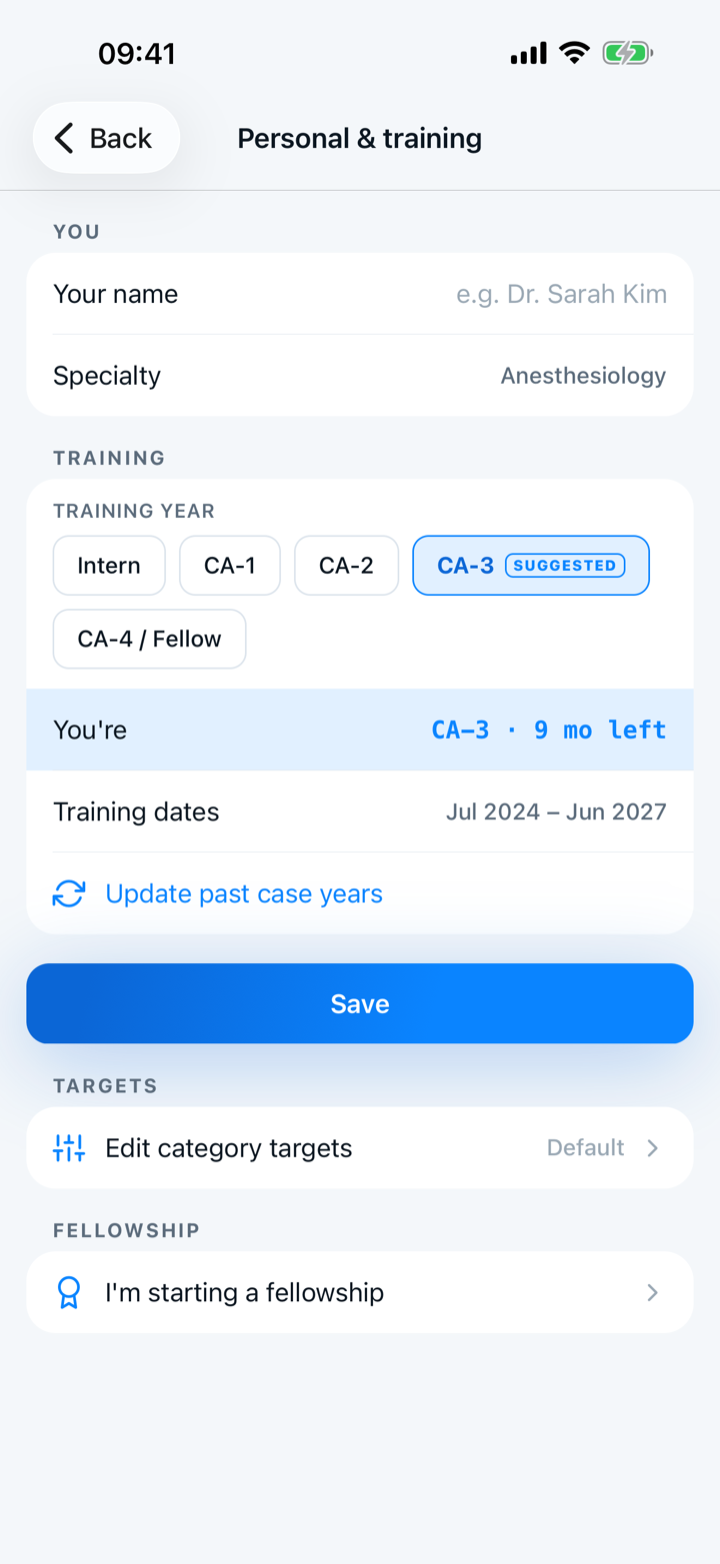
Open Settings → Personal & training
Set “Training year.” Residency runs from July 1 to June 30, so there is no start date to type. The rows under it show what Capnolog worked out, such as “CA-2 · 8 mo left,” and your training dates.
- 2
If the Log tab says “Your training year looks wrong”
The ACGME holds a run of your cases under a different year than Capnolog recorded. Tap “Fix my year” and correct the year. Saving the year clears the warning.
- 3
If the Log tab says “Some ACGME entries have the wrong year”
Your year in Capnolog is right, and specific entries at the ACGME are filed under the wrong year. Tap “See the cases” for the list.
- 4
Correct those entries at the ACGME
Capnolog cannot change the ACGME's record. “Copy case details” copies the case date, the ACGME Case ID, the filed year, and the correct year. “Open the ACGME case log” takes you to the site, where you fix each entry yourself.
- 5
Close a warning you have read
The ✕ hides that one warning. A new disagreement brings a new warning.

Keep reading
More in get set up
Add your hospitals, generate your rooms, and say which name on the OR board is yours.
Build the lists Capnolog fills from — and fix one when it is wrong.
Theme, units, note behavior, the app lock, and the planning preferences most people never find.
Thirteen rows that stop the app guessing where you were.